Home · How-To · Find and add an invite-only indicator
Find and add an invite-only indicator
An invite-only indicator is a Community script you can add to a chart only after its author grants access to your exact TradingView username. This walkthrough uses an invite-only example of the free Erdica Trading 0405 Sessions indicator. The same steps apply to any invite-only script.
Steps
- Sign in to the TradingView account that should receive access. Use that account's exact username, not your email address. You can check the username in Settings and billing → Public profile.
- Open the script's publication page, from a link the author gives you or from Community → Indicators and strategies. Invite-only scripts show an INVITE-ONLY SCRIPT badge. Until the author has granted permission, the Use on chart button is unavailable. Source code stays grayed out for invite-only scripts.
- Follow the author's instructions on that page and ask the author to grant access to your exact username. Access is granted only by the author, from Manage access or Manage invite-only access. It is not included in a TradingView plan.
- After access has been granted, the publication page shows Access granted, and Use on chart becomes available. You can add the script from that button, or from a Supercharts chart as in the next step.
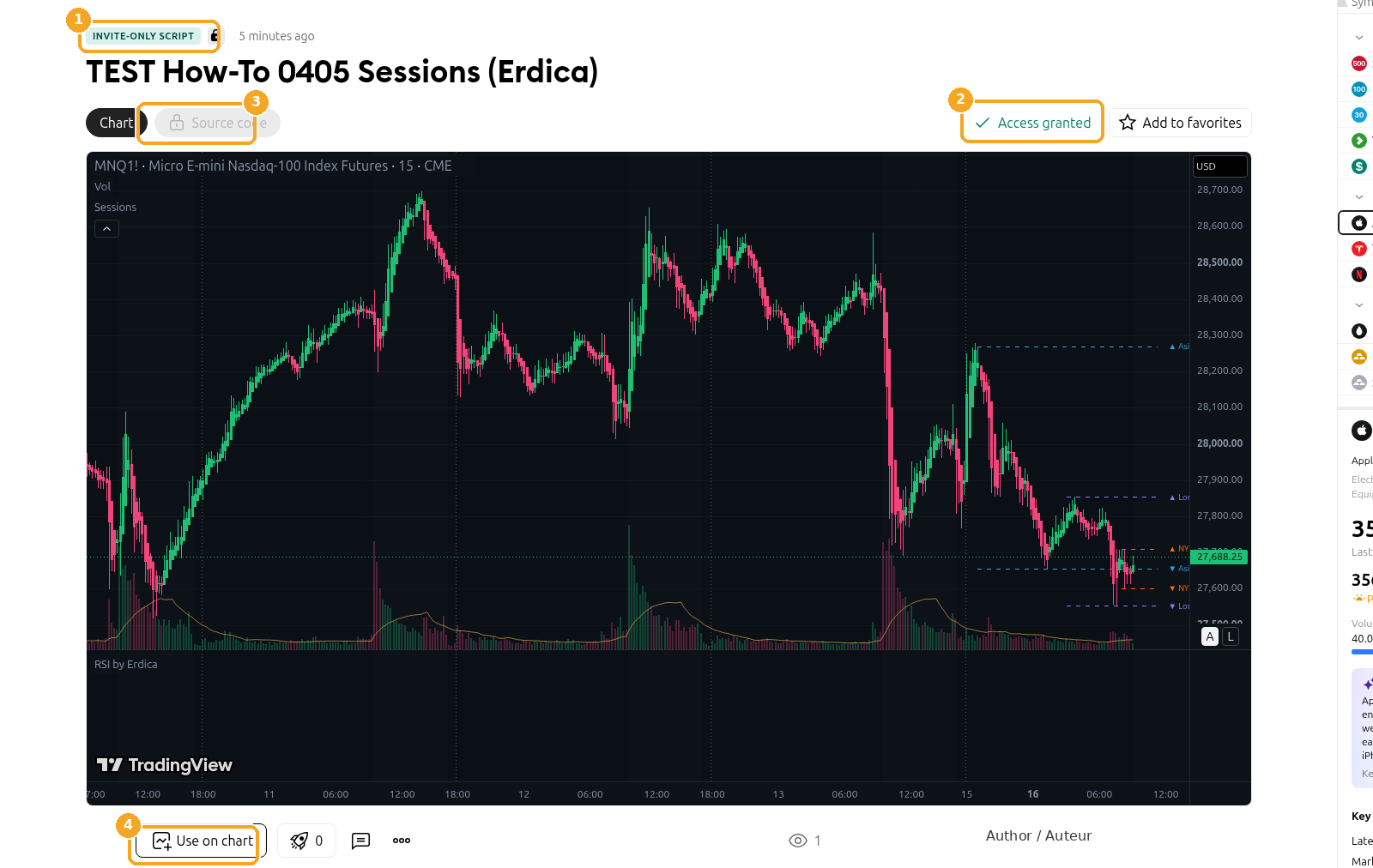
Screenshots of the TradingView interface, November 2026.
Symbols shown are examples only, not recommendations.
- Open a Supercharts chart. Click Indicators on the top toolbar, or press
/. The Indicators, metrics, and strategies dialog opens. In the left pane, under PERSONAL, open the Invite-only tab — it appears after My scripts, and only after at least one invite-only script has been granted to your account. If you do not see it, confirm that you are signed in with the same username, then refresh the page.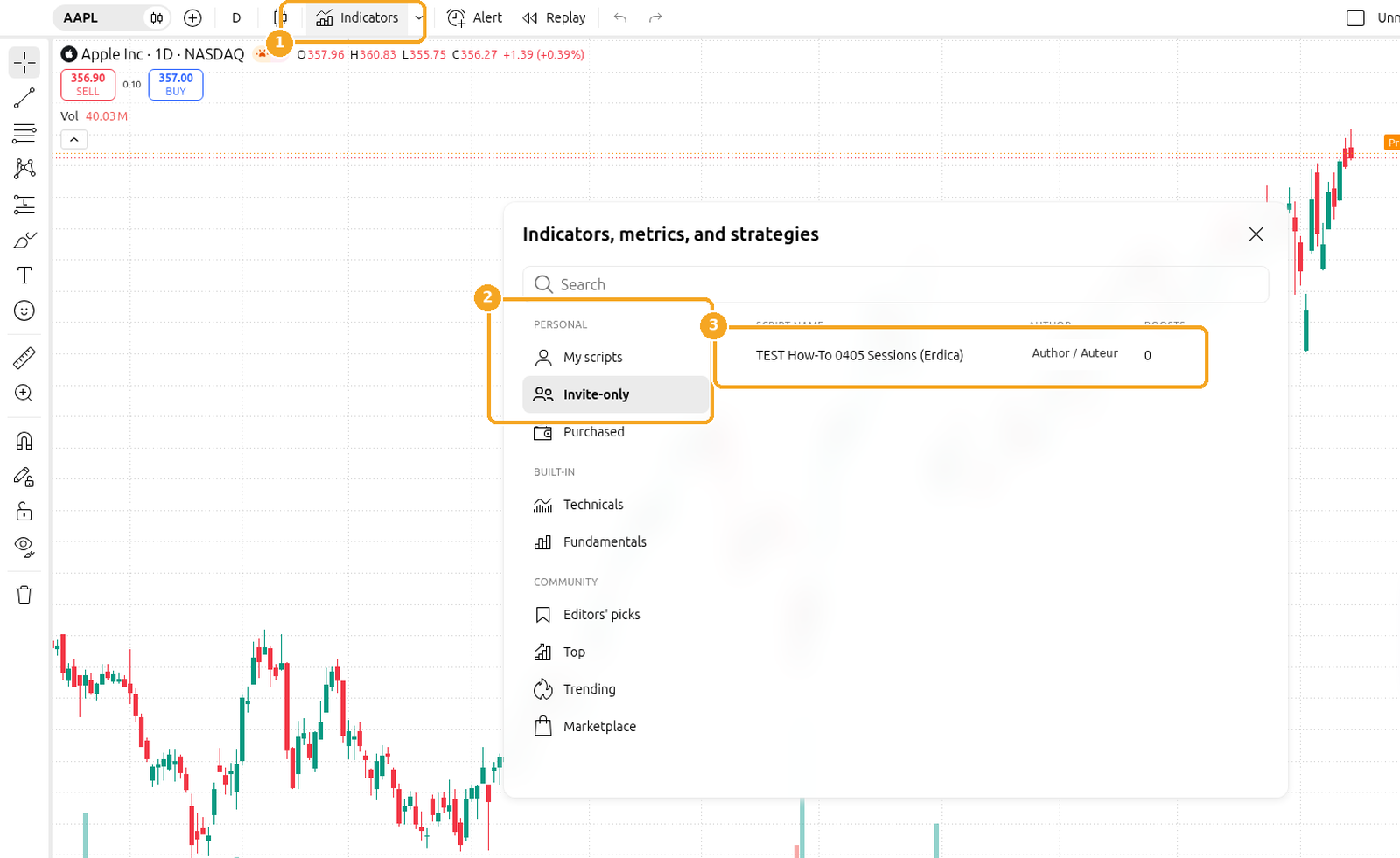
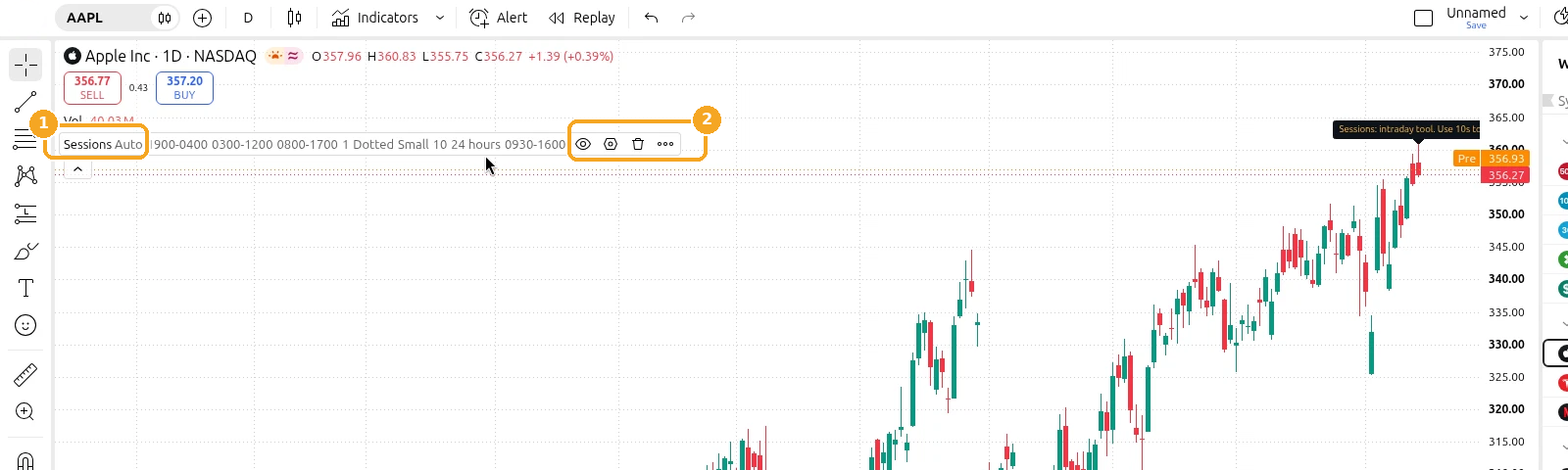
- Click the script name to add it to the chart. The short name (for 0405 Sessions, Sessions) appears in the chart legend. To open the settings the author has made editable, hover the name and click Settings (the gear icon). Hover also shows Hide (the eye icon), Remove (the trash icon), and More options (⋯). This guide does not cover those inputs.


If the script still does not appear, check that the username you sent matches the signed-in account exactly, and that the author has finished granting access.
Last checked: November 2026
Official TradingView help: How to try indicators and strategies from the Community on your chart