Home · How-To · Navigation basics
Navigation basics
This walkthrough covers the main Supercharts controls for choosing a symbol, setting the interval, and moving around the chart. It is a tour of the interface only. The free Erdica Trading 0405 Sessions indicator is only an example of a script you can add to the chart.
Steps
- Open Supercharts and sign in. To change the symbol, click the symbol name at the top left. A search box appears. Type a ticker (for example, AAPL) and select the result that matches the name, type, and exchange you want. Filters at the top of the search include All, Stocks, Funds, Futures, Forex, Crypto, Indices, Bonds, Economy, and Options.
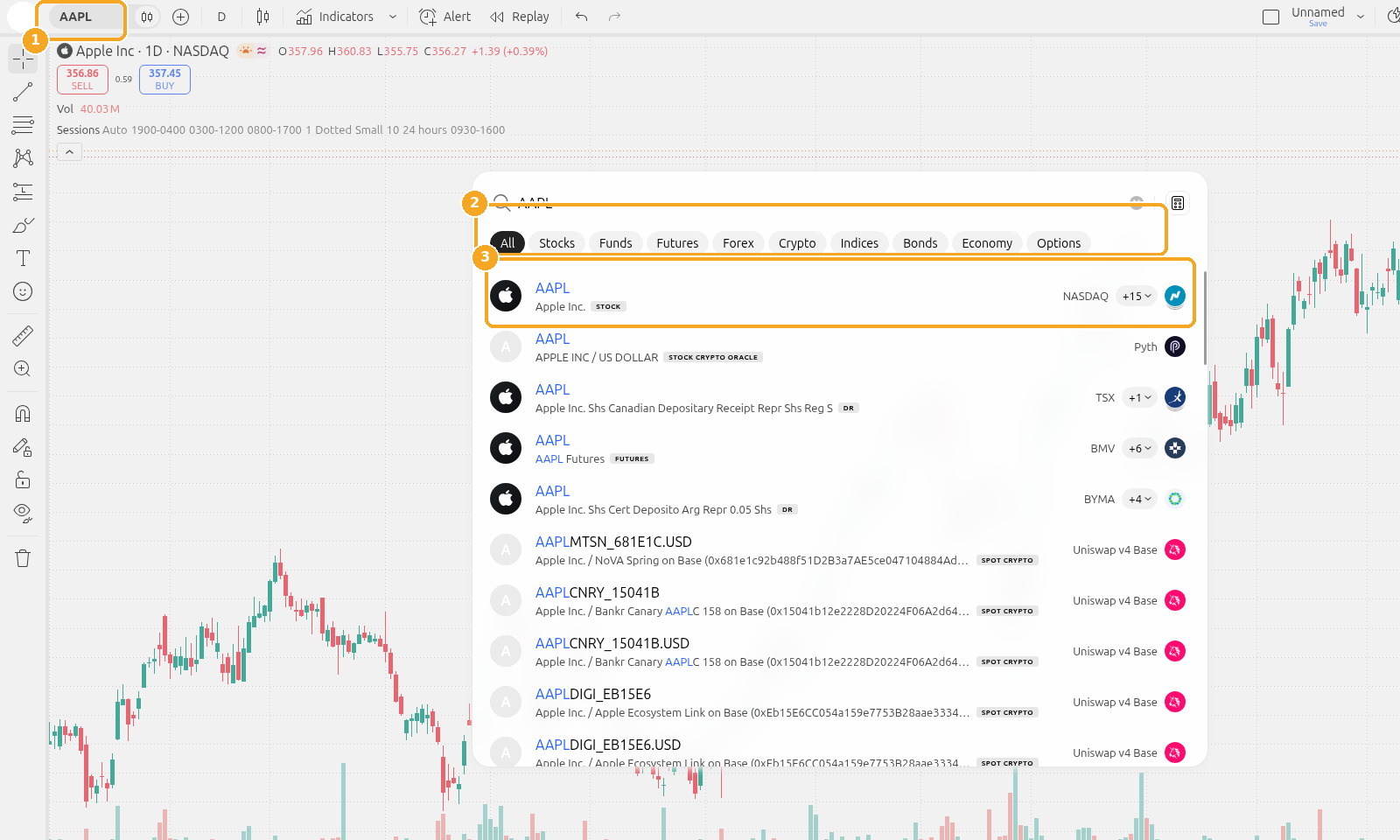
Screenshots of the TradingView interface, November 2026.
Symbols shown are examples only, not recommendations.
- The top toolbar also has + (compare a symbol), the interval (for example, D), the chart type, Indicators, Alert, Replay, and Undo and Redo. Choose an interval and a chart type that suit the view you want. To add a script such as 0405 Sessions, click Indicators.

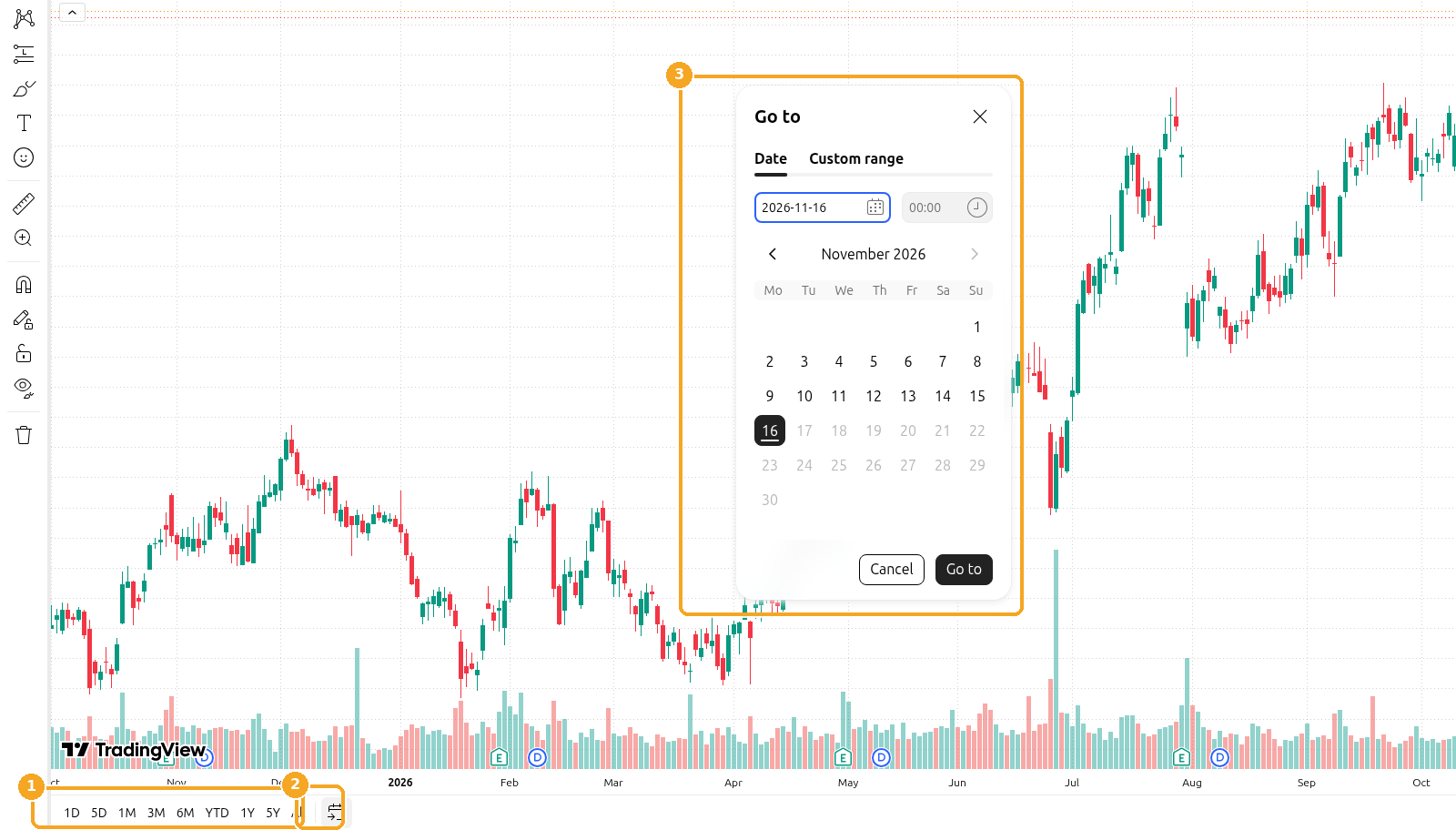
- Under the time scale, presets such as 1D, 5D, 1M, 3M, 6M, YTD, 1Y, 5Y, and All fit a period to the screen. Click the calendar icon to open Go to, then pick a Date or a Custom range.
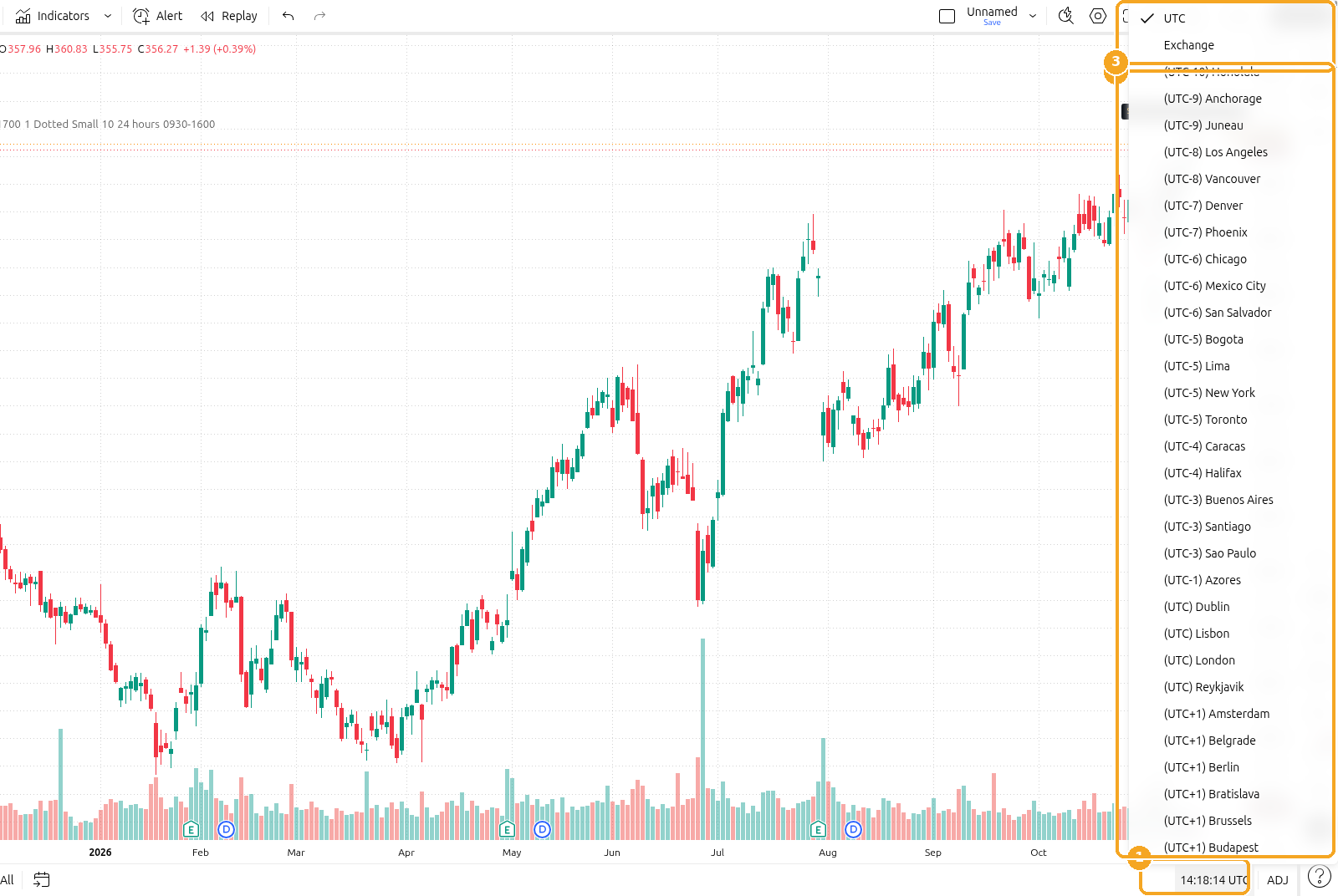
- Set the chart time zone by clicking the time-zone label at the bottom right (it may show UTC). Choose Exchange to follow the trading venue's time, or pick UTC or another zone from the list.
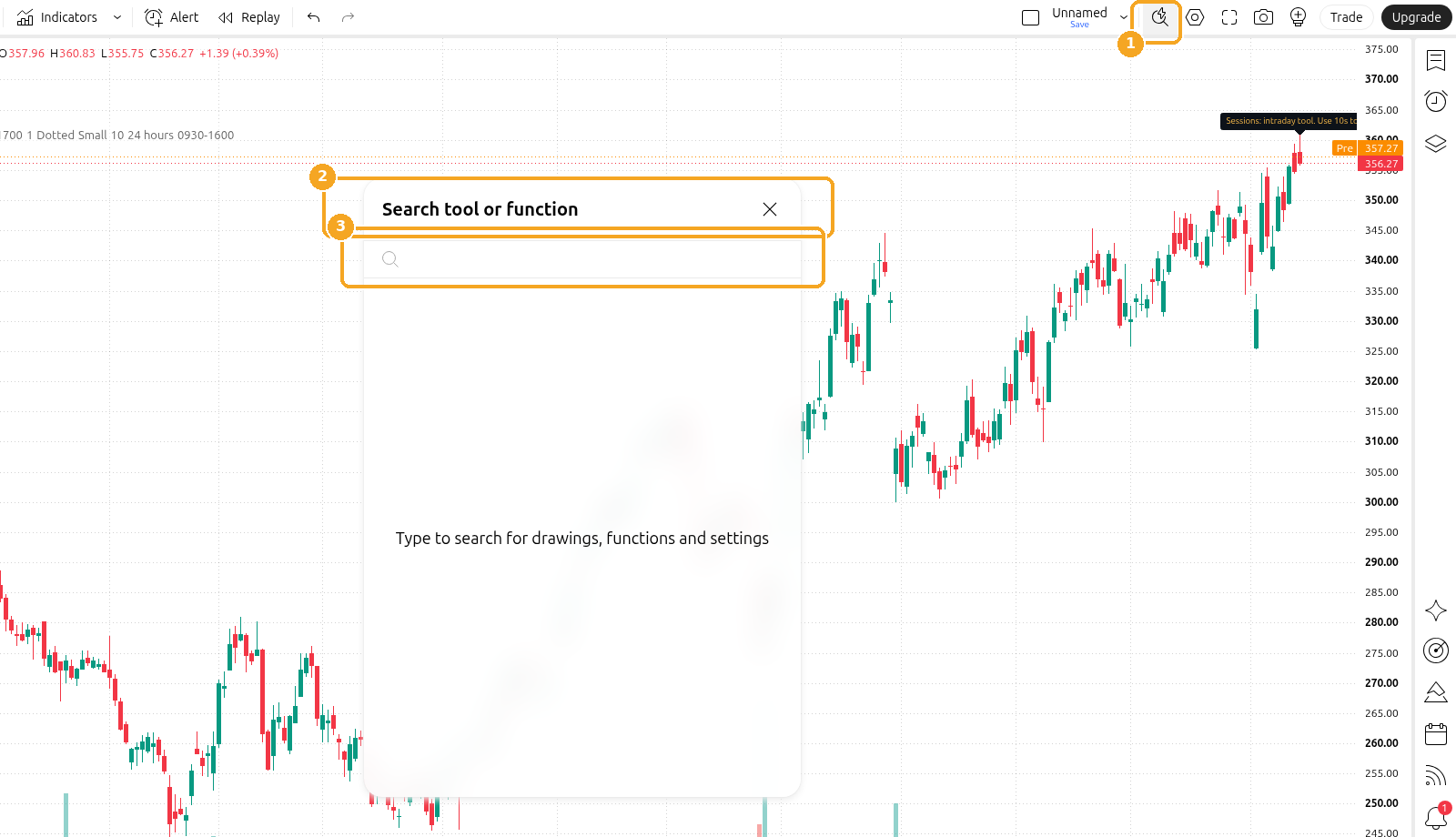
- To find a tool or a setting without browsing the menus, click the magnifying glass at the top right. Quick search opens, titled Search tool or function. You can also open it with Ctrl+K (Windows) or Cmd+K (macOS) (shortcut per TradingView Help).


Other useful areas: the left toolbar for drawings, and the right toolbar for panels such as the watchlist and alerts.
Last checked: November 2026
Official TradingView help: Getting started with Supercharts