Home · How-To · Save a chart layout
Save a chart layout
A chart layout is your saved Supercharts workspace. It remembers the symbol, interval, chart type, indicators, drawings, colors, and settings. This walkthrough shows how to save a layout, rename it, and open it again. A layout that includes the free Erdica Trading 0405 Sessions indicator is used only as an example.
Steps
- On Supercharts, click the layout name at the top right (a new chart may show Unnamed) or the arrow next to it. The layout menu opens. It includes Save layout (Ctrl+S), Autosave, Share layout, Make a copy…, Rename…, Download chart data…, Create new layout…, a RECENTLY USED list, and Open layout….
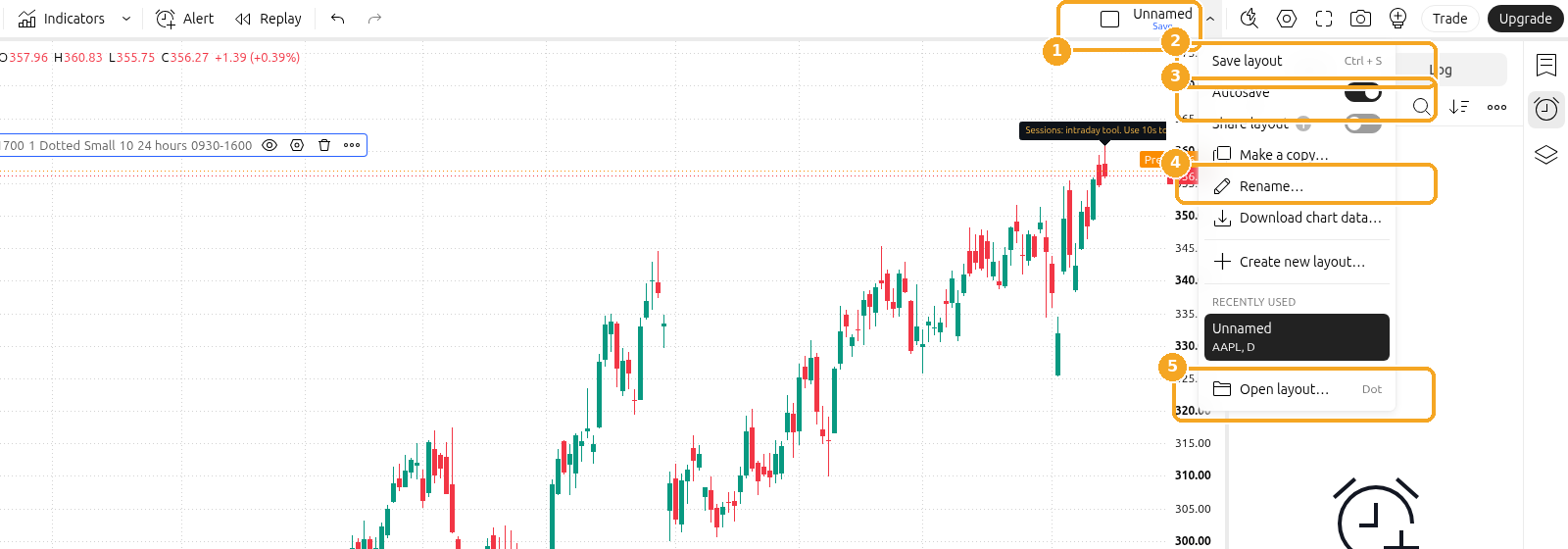
Screenshots of the TradingView interface, November 2026.
Symbols shown are examples only, not recommendations.
- Set up the chart the way you want to keep it: symbol, interval, chart type, and any indicators, such as 0405 Sessions. Then click Save layout, or press Ctrl+S (Windows) or Cmd+S (macOS). If the layout has unsaved changes, a blue Save sign appears under the name. Save before you close the page if you want to keep those changes.
- To give the layout a name, click Rename… in the same menu and type the name you want.
- You can turn on Autosave in the same menu. TradingView's current help states that when Autosave is enabled, created drawing objects and their changes are saved instantly. If you work with the same layout in several tabs, TradingView recommends saving the layout manually in every tab after changes.
- To reopen a layout, use RECENTLY USED in the same menu, or click Open layout…. The Layouts window has a Search box and a LAYOUT NAME list.
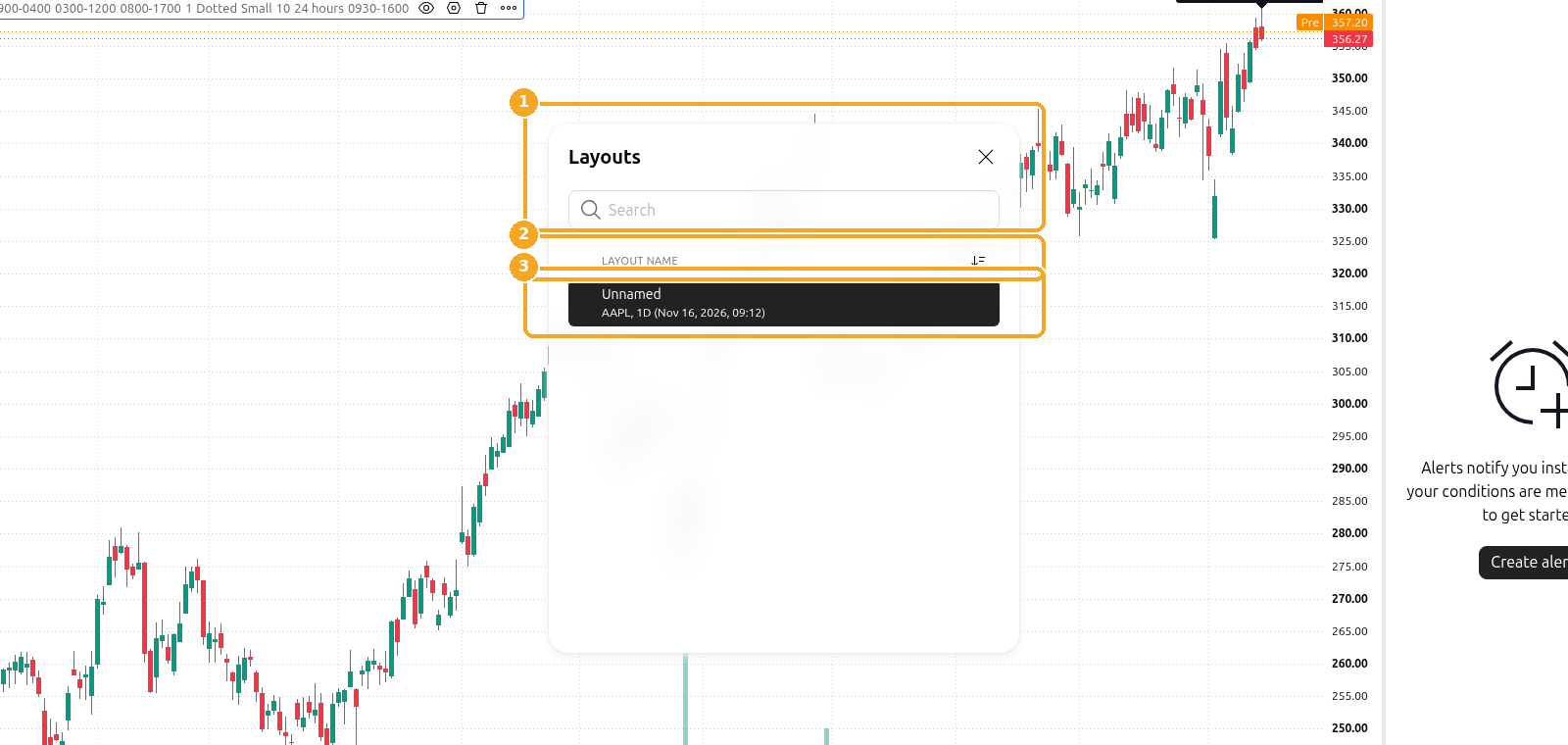
- Other useful commands: Make a copy… starts a new layout from the current one. Create new layout… starts a blank layout. On the free Basic plan, TradingView limits you to one saved layout, according to TradingView's plans page, November 2026; choosing Create new layout… can show Your plan has a limit — 1 saved layout. Paid plans allow more layouts. This guide does not recommend a plan.


Last checked: November 2026
Official TradingView help: TradingView layouts: a quick guide