Set up alerts
This walkthrough shows how to create an alert on Supercharts and choose how TradingView notifies you. It explains the alert tools only — not a condition or a result. The free Erdica Trading 0405 Sessions indicator is only an example of a script already on the chart.
Steps
- Open a Supercharts chart, sign in, and add the symbol you want. If the alert should watch an indicator, add that indicator first (for example, 0405 Sessions). Alerts on indicators, strategies, and drawings depend on the chart interval; alerts on the data series (price) do not.
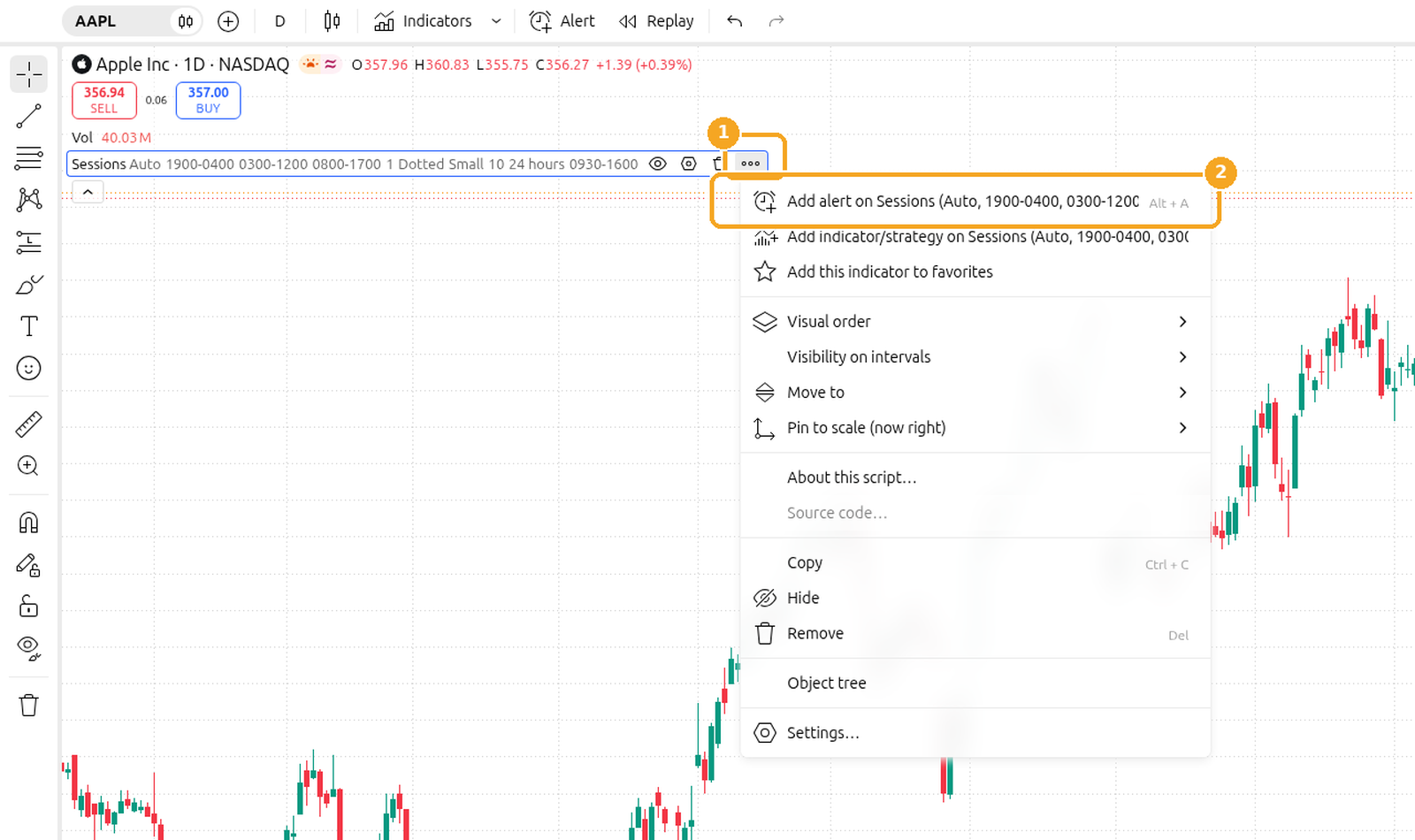
- Open the create-alert dialog in any of these ways:
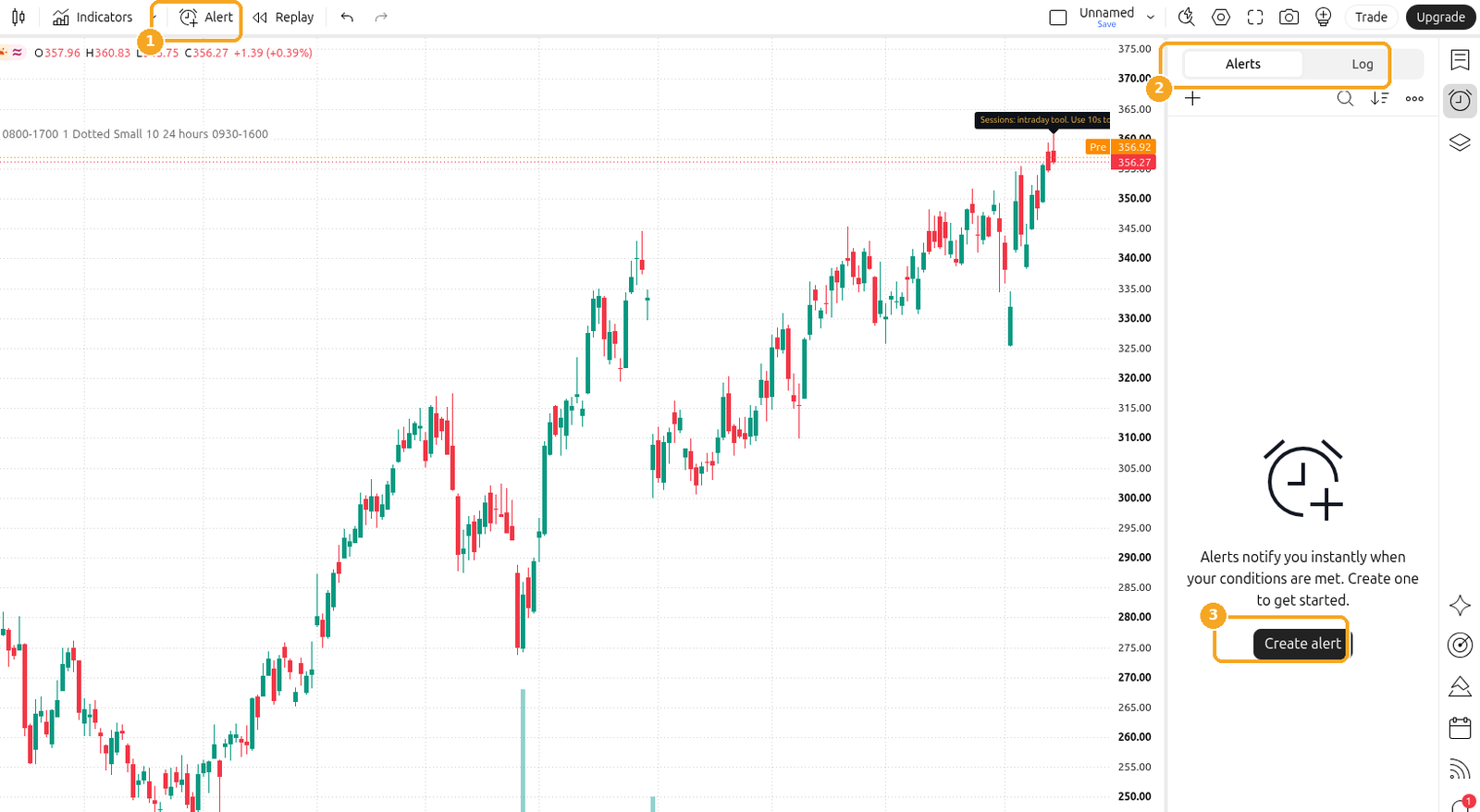
Screenshots of the TradingView interface, November 2026.
Symbols shown are examples only, not recommendations.
- Alert on the top toolbar
- The Alerts panel on the right, then Create alert. The panel has Alerts and Log tabs.
- Hover the indicator name in the legend, click More options (⋯), and choose Add alert on Sessions (…). The menu also lists the shortcut Alt + A.
- The window is titled Create alert on the current symbol (for example, Create alert on AAPL). Set these fields as they appear in the dialog:
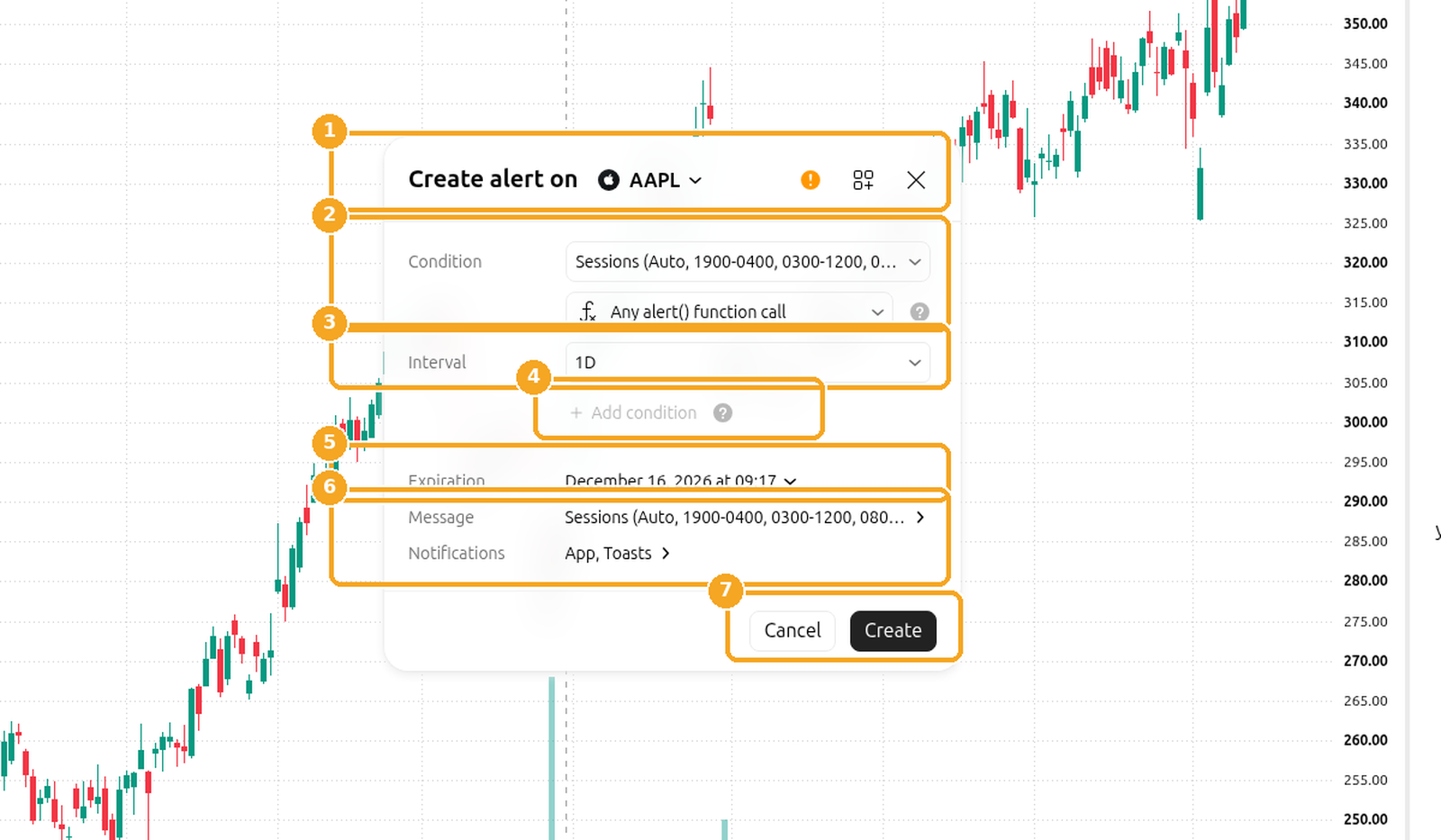
- Condition: choose the script (for 0405 Sessions, Sessions), then the event. In this example the event is Any alert() function call, which uses the alert calls the script author has written. You can click Add condition to add another condition.
- Interval: the interval the alert watches. It can differ from the chart interval for indicator alerts.
- Expiration: a date when the alert stops.
- Message: the text shown when the alert triggers.
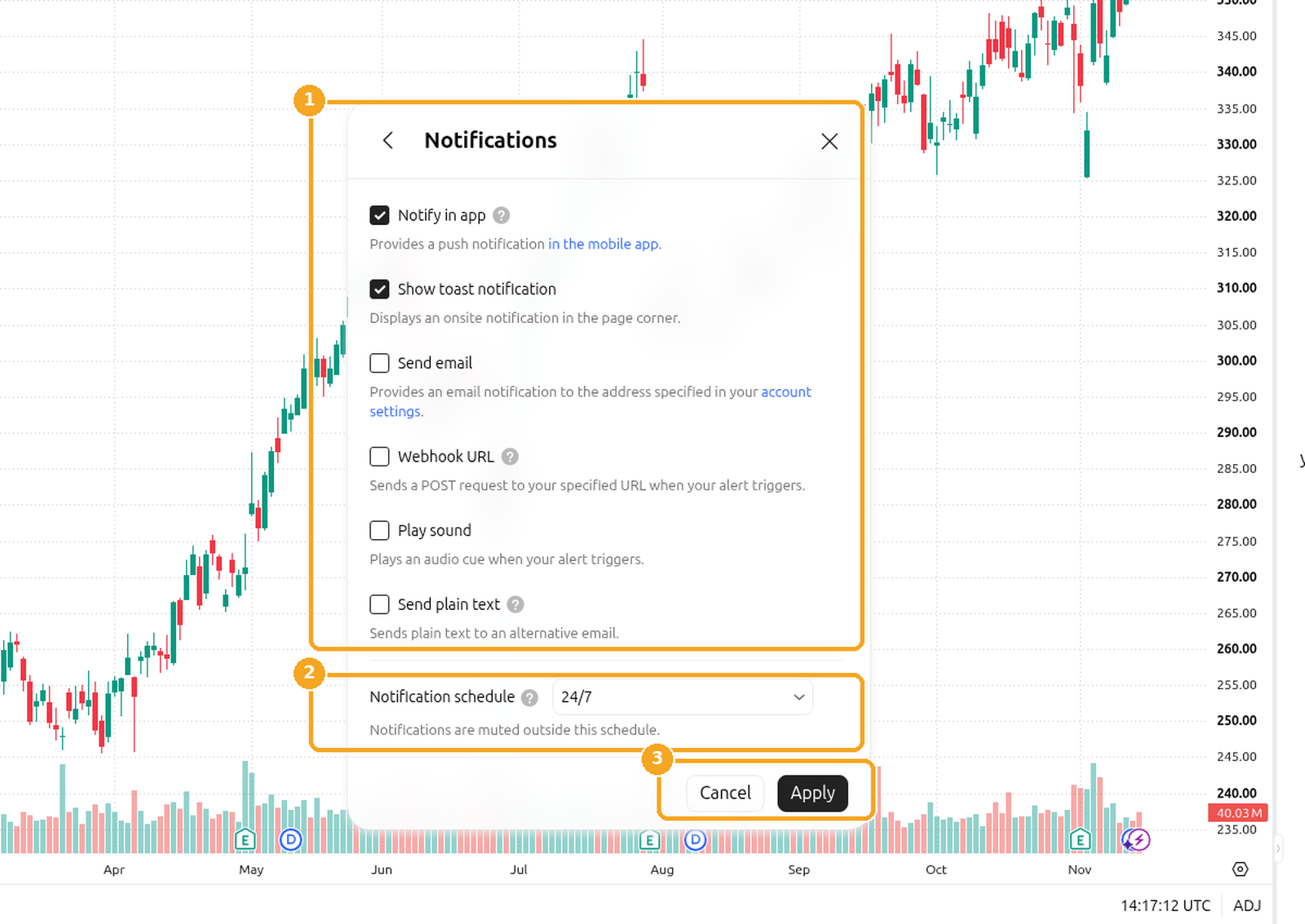
- Open Notifications and choose how you want to be notified: Notify in app, Show toast notification, Send email (the address on your TradingView profile), Webhook URL, Play sound, and Send plain text. Notification schedule can be left at 24/7, or set to limited hours. Click Apply to confirm the notification choices, then Create on the main dialog.
- After you create the alert, check it in the Alerts panel.


If an indicator's parameters change after the alert is created, TradingView still triggers it using the old settings. Create a new alert when you want the current settings to apply.
Last checked: November 2026
Official TradingView help: How to set up alerts