Home · How-To · Update an indicator
Update an indicator
When you add an indicator to a Supercharts chart, TradingView applies the most recent published version. A copy already on your chart does not update by itself when the author publishes a new version. This walkthrough shows how to load that latest version, with the free Erdica Trading 0405 Sessions indicator as an example. It does not cover indicator inputs. TradingView may show an update indication next to the indicator name. The steps below follow the documented method of removing the script and adding it again, which loads the latest published version and does not depend on that indication.
Steps
- Open the layout that already has the indicator on the chart. If a new version was published while the chart was open, reload the browser tab so the catalog is current.
- Hover the indicator name in the chart legend (for 0405 Sessions, the short name is Sessions). Click Remove — the trash icon that appears on hover — to take the current copy off the chart.
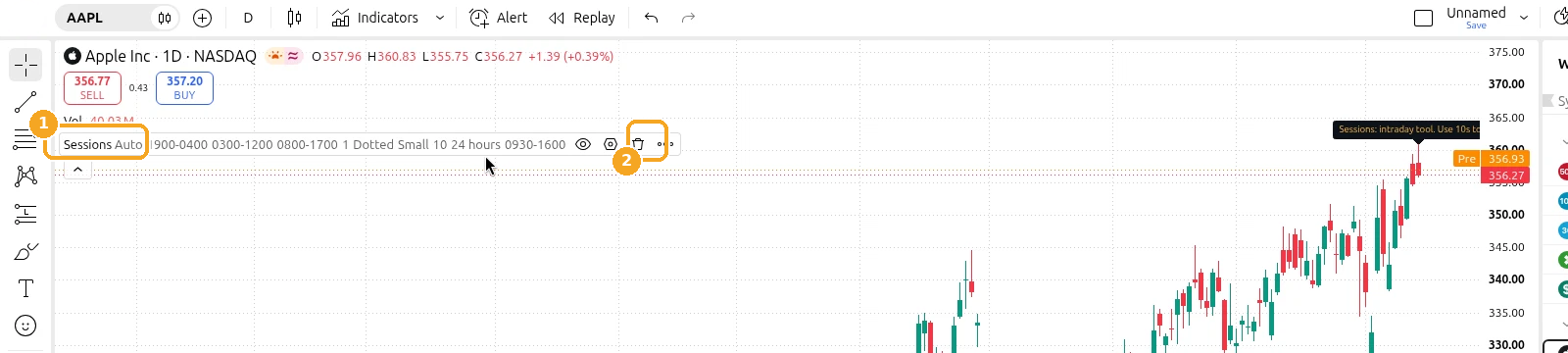
Screenshots of the TradingView interface, November 2026.
Symbols shown are examples only, not recommendations.
- Click Indicators on the top toolbar, or press
/. In the Indicators, metrics, and strategies dialog, open the Invite-only tab under PERSONAL. Click the script name to add it again. Official help states that when you add an indicator to the chart, the most recent published version is added.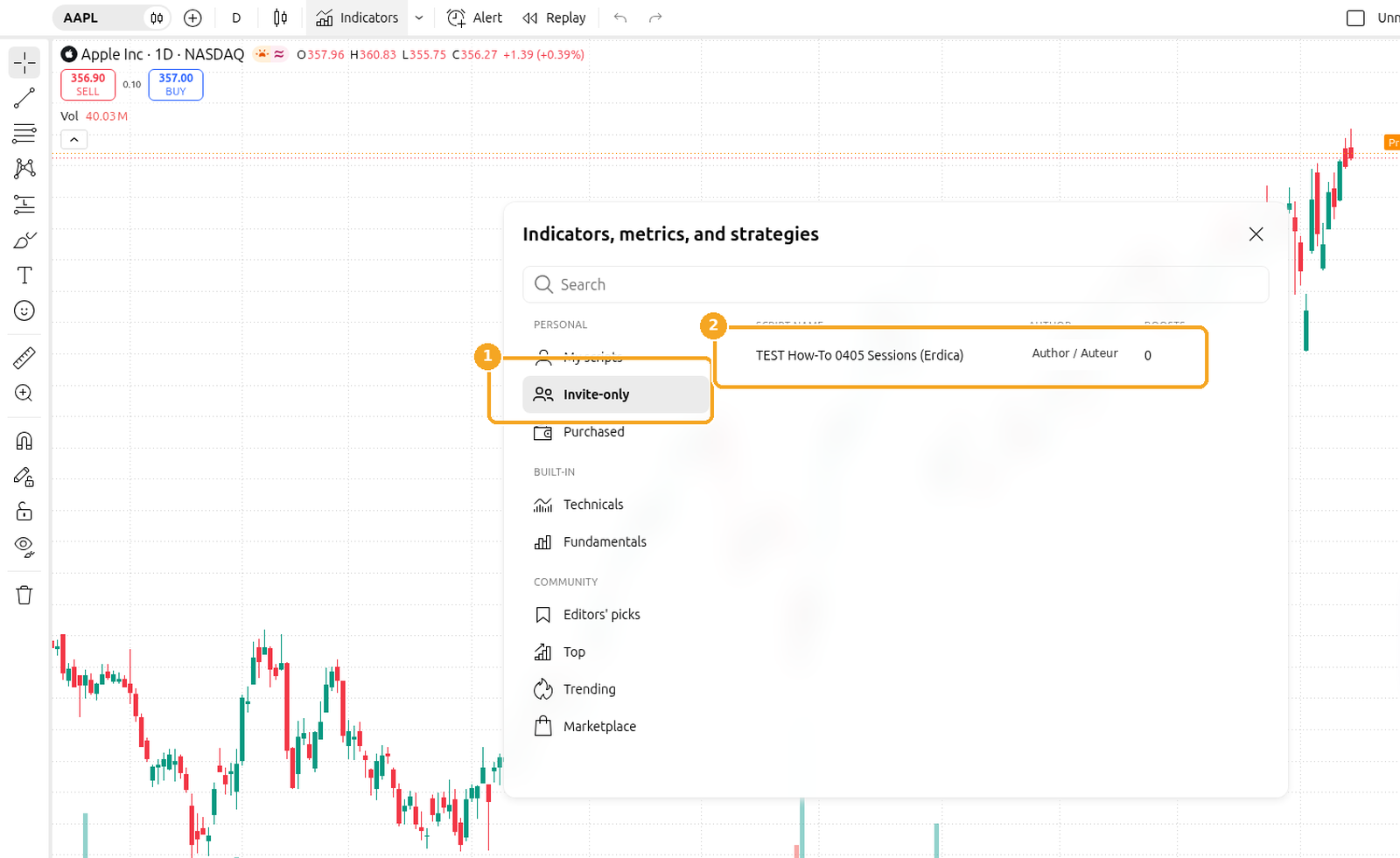
- Hover the name again and open Settings (the gear icon). Check that the inputs you want are still in place. Adding a fresh copy loads the latest published script, but you may need to restore any inputs you had changed on the previous copy. This guide does not list those inputs.
- Save the layout so the updated script stays on the chart next time. Click the arrow next to the layout name at the top right, then click Save layout, or press Ctrl+S (Windows) or Cmd+S (macOS). If the layout has unsaved changes, a blue Save sign appears under the name.

- If you use alerts on that indicator, review them after the update. TradingView states that if an indicator's parameters are changed after an alert is created, the alert still triggers using the old settings. Create a new alert when you want the current script or inputs to apply.


Note: Version history in the Pine Editor, including Add version to chart, is only for open-source Pine scripts that show a Source code ({}) button. Invite-only and protected scripts do not expose their source, so that path does not apply to them.
Last checked: November 2026
Official TradingView help: How to apply an older version of an indicator to the chart